
Preparing a survey study for preregistration
Source:vignettes/articles/templates/pre-registered-survey-sealed-and-amended.Rmd
pre-registered-survey-sealed-and-amended.RmdA survey study whose instrument and analysis plan are saved with a hash before data collection, with any later change recorded as a disclosed amendment. surveyframe writes a pre-analysis plan for you to complete and register on OSF or Zenodo, and a report that names the instrument it analysed.
Preview the questionnaire
This is the questionnaire as respondents see it. It is a preview to try, and it stores no answers. Open the Preparing a survey study for preregistration preview in a new tab.
The example analysis plan
Before any data is collected, surveyframe writes the pre-analysis plan: the study, the questionnaire, each research question with its hypotheses, method and decision rule, and the fields a preregistration still asks you to complete. Read the Preparing a survey study for preregistration plan, or download the Preparing a survey study for preregistration instrument (.sframe) to adapt it.
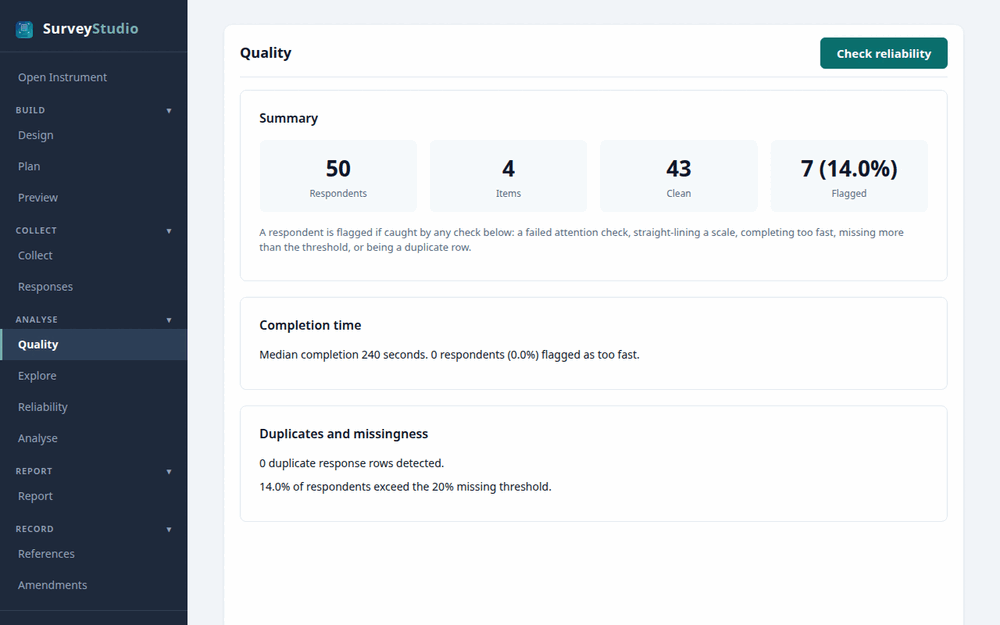
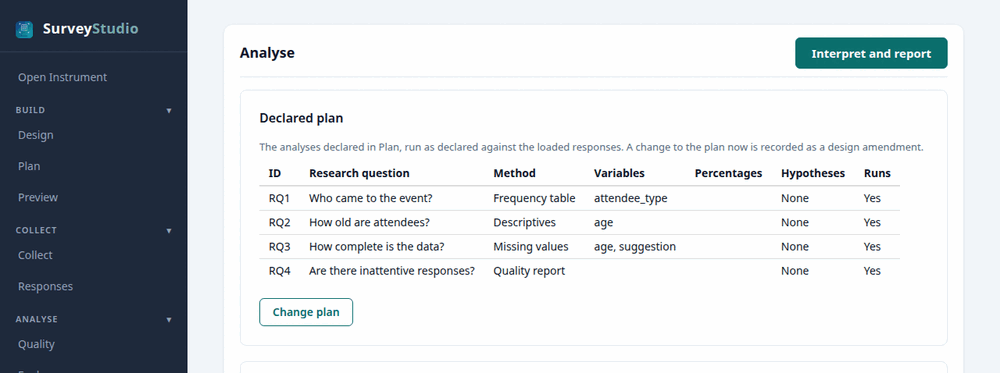
Methods it declares: Frequencies and percentages, Descriptive statistics, Missing-data summary, Response quality checks.
Open this instrument in SurveyStudio
- Set up R, RStudio and surveyframe as Get started shows.
- To explore the example with its demonstration responses, open
RStudio’s Addins menu, choose surveyframe: Try
a demo and pick
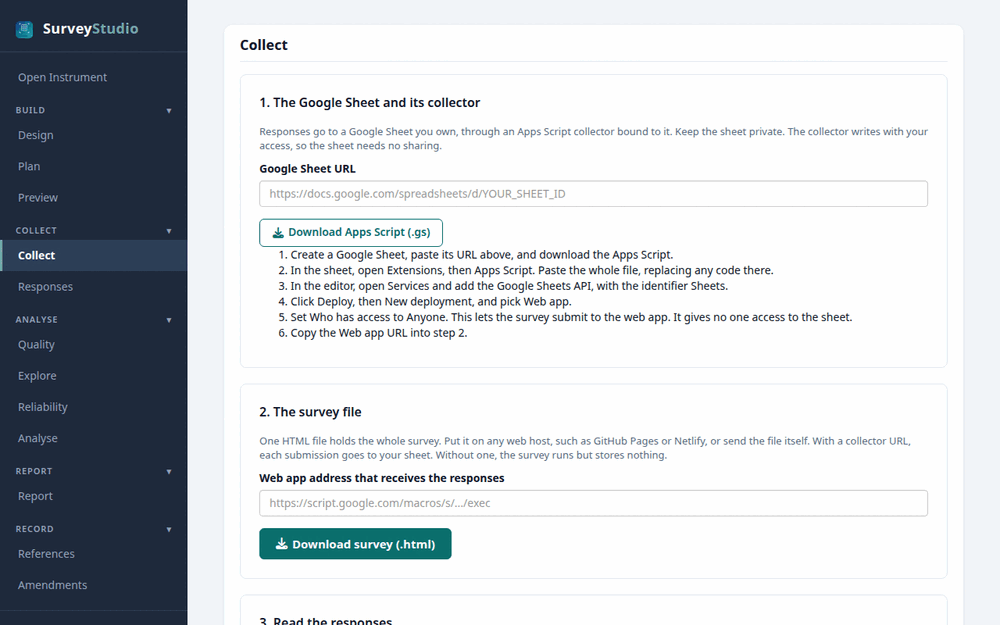
verification, which opens this template’s study. - To make it your own study, download the instrument above, choose surveyframe: Open analysis workspace from the Addins menu, then Open Instrument in SurveyStudio’s left menu, and select the file.
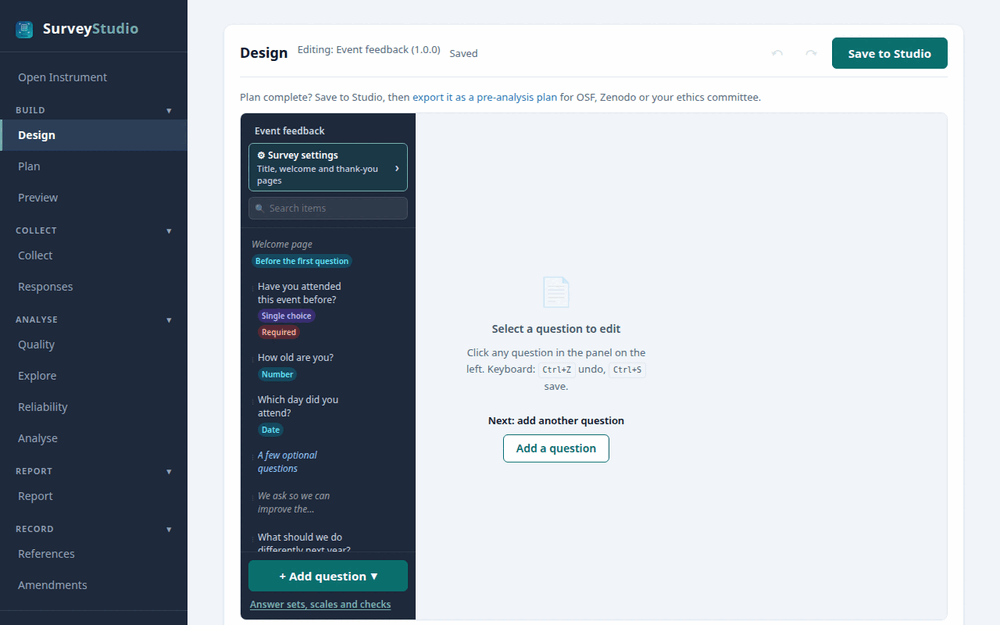
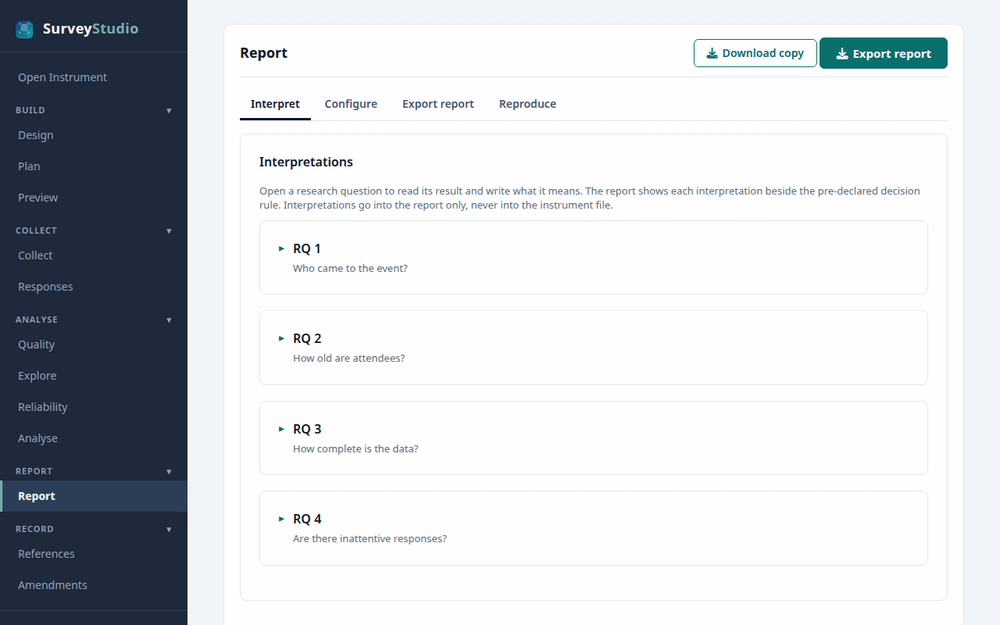
- Adapt the questions on the Design screen and the research questions under Plan, press Save to Studio, then press Download copy on the Report screen to save your study.
Questions
How do I preregister the plan on OSF?
Export the pre-analysis plan from SurveyStudio’s Report screen, or with render_report() and no data. Complete the fields it lists under To complete before submission, then upload it with the .sframe file. The plan names the file’s hash.
How does a reader check the questionnaire?
Anyone can check the .sframe file at surveyframe.org/verify: the page reports whether it matches the hash recorded when it was saved, and reads its disclosed amendments. To identify the registered version, compare the hash with the one in the registered plan.
Optional R code
Open this study in R
d <- sframe_demo("verification")
render_report(d$instrument)                 # the pre-analysis plan
results <- run_analysis_plan(d$responses, d$instrument)